
The file list window of the remote host serves as the unified entry point for numerous functions.
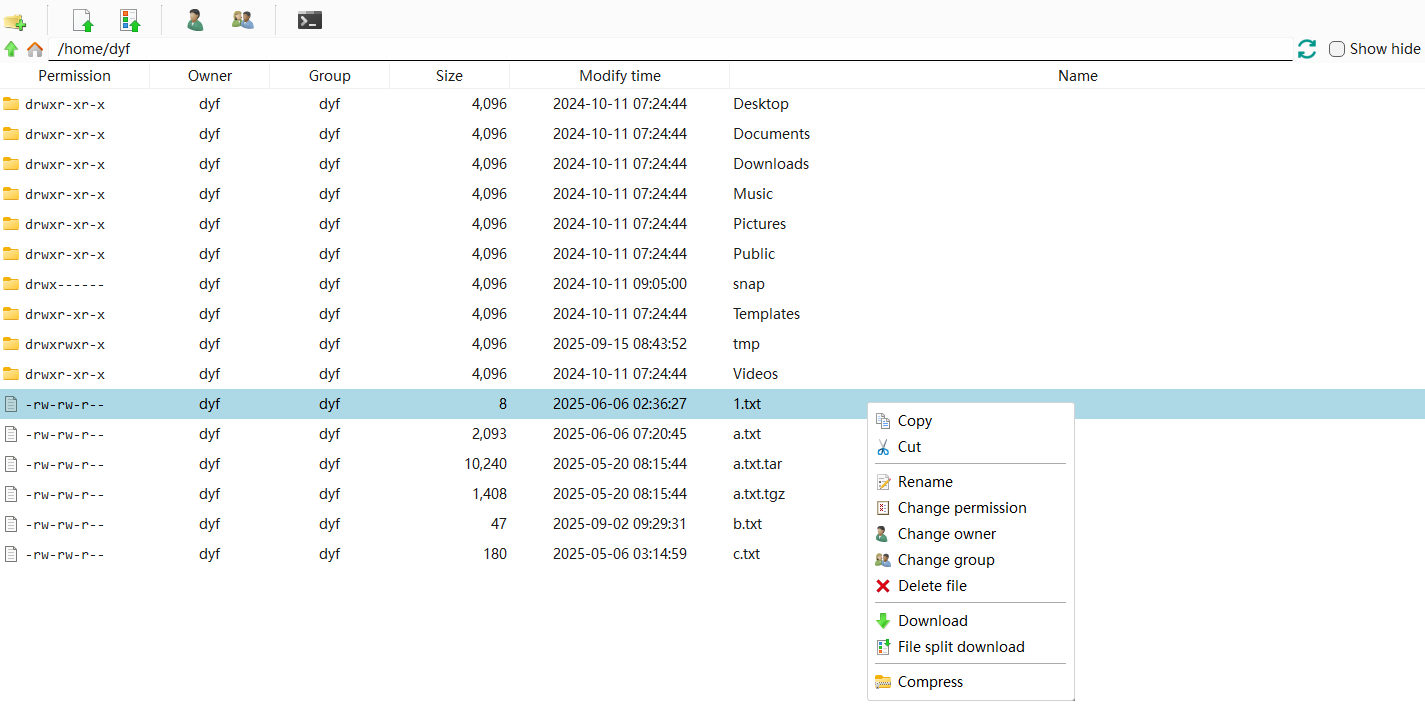
At the top of the window are the function button bar and the path navigation bar:
- New Directory — Create a directory in the current path
- Upload — Upload a local file or directory to the current path
- Split file upload — Upload a local file in split block format (suitable for the transfer of large files)
- User — Display the current logged-in username and id (if logged in as root, other users can also be managed)
- User Group — Displays the group and additional groups to which the currently logged-in user belongs (if logged in as root, other user groups can also be managed)
- shell Terminal — Open the shell Terminal window and automatically enter the current path
- Upper-level path — The upper-level path leading to the current path
- home — Enter the home path
- Path Bar — Displays the current path. You can manually edit the path and press Enter to enter.
- Refresh — Refresh the current path file list
- Show Hidden files — Show or hide special files (files starting with ‘. ‘) in the current path
In the file list, right-click on a file or directory, and a menu will pop up, as shown in the above picture:
- Copy — Graphical command ‘cp’
- Cut — Graphical command ‘mv’
- Rename — Modify the name of a file or directory
- Change permissions — Modify the permissions of files or directories (graphical command ‘chmod’)
- Change owner — The user who modifies the ownership of a file or directory
- Change group — Modify the user group to which a file or directory belongs
- Delete — Delete the current file or directory (Deleting a directory may carry risks. A confirmation dialog box will pop up immediately and you will be forced to type ‘-r’ to confirm the deletion operation).
- Download — Download a file or directory to your local device
- File Split Download — Download files in split blocks (the directory does not have this right-click menu)
- Compress – Compress files or directories in tar.gz format (if the current file name ends in tar.gz, the right-click menu is “Extract”)
Drag and drop to upload and download
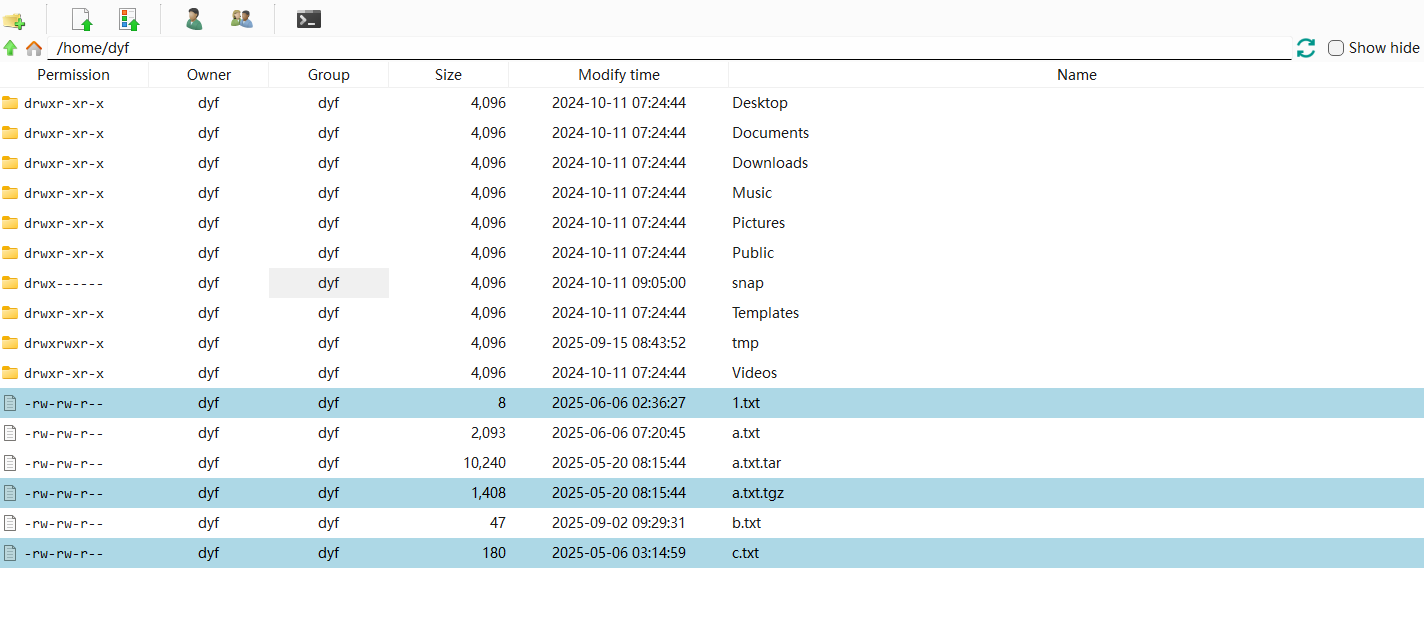
You can drag files or folders from the system desktop or Explorer to the current list window for uploading. You can drag and drop only one file or folder at a time, or you can drag multiple files or folders at once. The file list supports Ctrl and Shift mouse operations to select multiple files or directories, which can be dragged outside the window program for downloading. The following picture is an example of multiple selections:
Upload/download tasks
When uploading/downloading and splitting uploading/downloading, a task button for uploading/downloading will be displayed on the right side of the top function button bar. Clicking it will pop up a transfer task window.
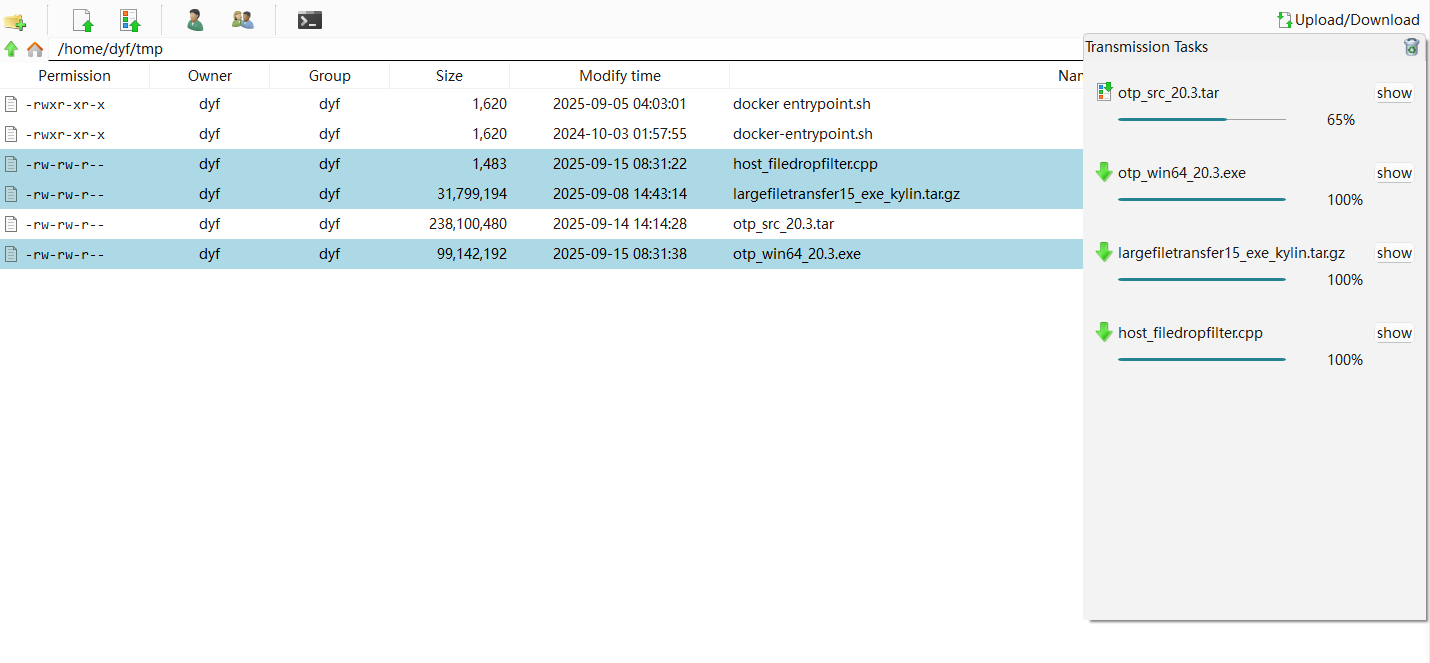
On the right side of the title bar in the pop-up transfer task window, you can click the “Trash can” button to clear the tasks in the list that have been completed, manually stopped, or have transmission anomalies that prevent them from continuing.
In the pop-up transfer task window, the transfer tasks are displayed in a list form. Each transmission task displays the following information:
- Display the transmission type in icon form. The types are divided into: upload, download, split file upload, split file download
- The name of the file or directory being transferred
- Transmission progress
The “Show” button on the right side of the transfer task, when clicked, will display a detailed window of the transfer task. The following picture shows the detailed information of the split file download.
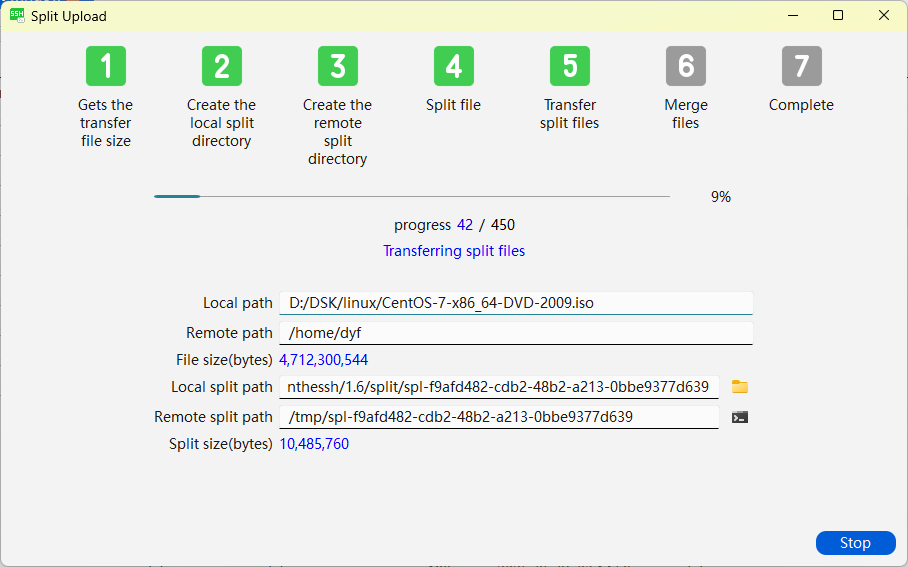
In the detailed window of the transmission task, you can track the transmission status, whether the transmission is completed, whether the transmission has failed, and the percentage of the transmission progress. You can also manually stop the ongoing transmission task.
Other online documents: